USA:
 India:
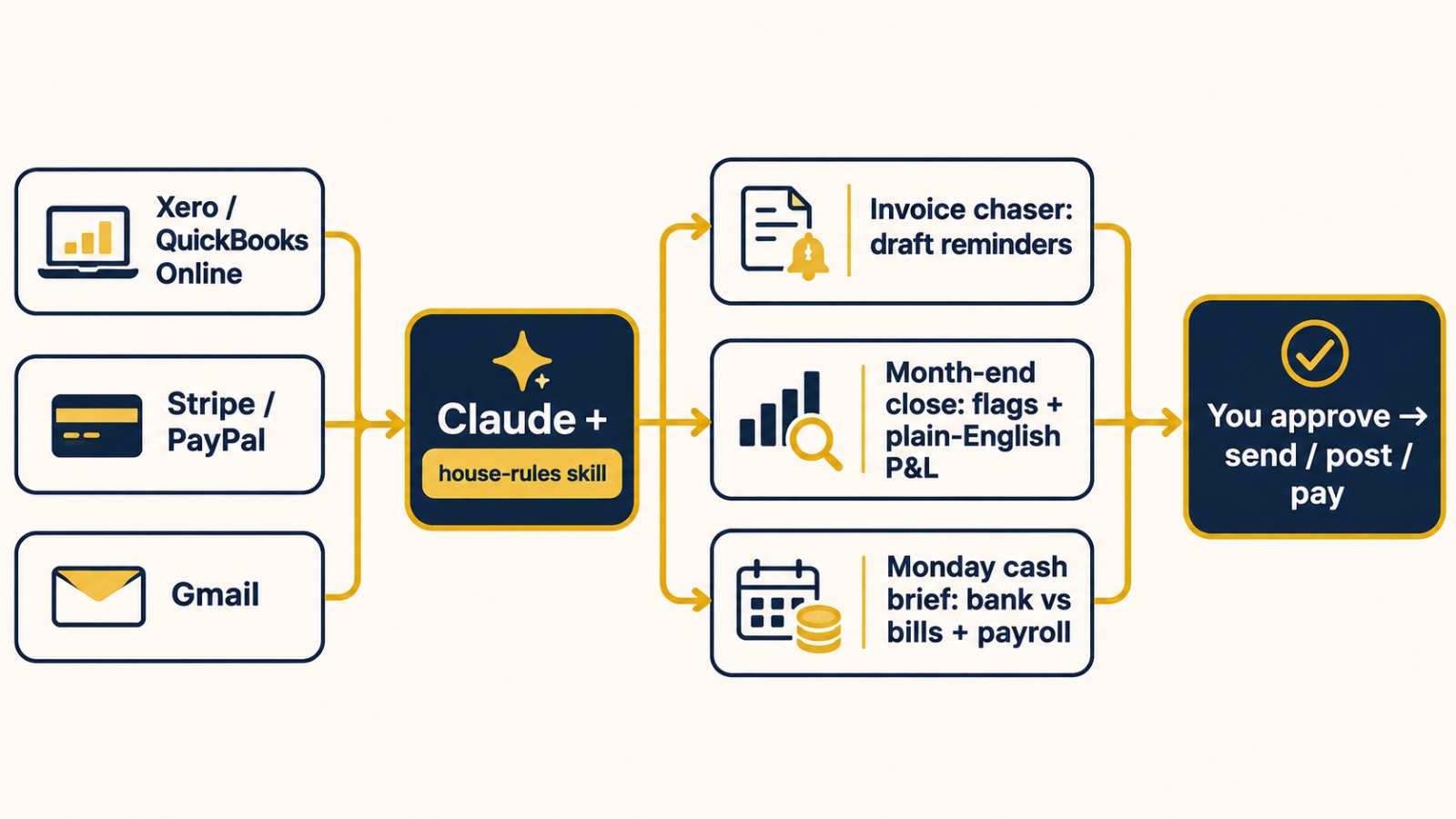
Get a paid Claude plan and install Anthropic’s Claude for Small Business plugin. Run /smb-onboard to connect Xero or QuickBooks Online, Stripe, PayPal and Gmail, then save your bookkeeping rules as a Claude skill. Use three workflows (an invoice chaser, the month-end close and a weekly cash brief), and approve everything before it’s sent or paid.
Key takeaways
The Claude for Small Business plugin costs nothing extra on paid Claude plans
It connects to QuickBooks, Xero, Gusto, Stripe, PayPal and more than 30 other apps
Approval is on by default: nothing is sent, posted or paid without you
The QuickBooks connector supports US QuickBooks Online only, and Xero’s official connector is read-only
Three leaks the agent plugs
Priya runs a design studio in London, with her books in Xero. Like most small businesses, she loses money in three quiet ways: invoices nobody chases, expenses filed under the wrong category, and a cash surprise when payroll is due. Each step below plugs one of those leaks.
Step 1: Get the right Claude plan
You need a paid Claude plan (Pro starts at $20 a month, or $17 a month billed yearly) and the Claude desktop app. The small business plugin isn’t available on the free plan.
Step 2: Install the plugin and connect your apps
Install Claude for Small Business from Anthropic’s plugin page and run /smb-onboard. It walks you through signing in to each app with your own account, and Claude inherits your permissions in each one. Check the limits before you rely on it:
The QuickBooks connector supports US QuickBooks Online only, not QuickBooks Desktop.
Xero’s official connector is read-only, and connects to one organisation at a time.
Write access in Xero needs Xero’s MCP server, which writes without its own confirmation step.
Step 3: Save your house rules as a skill
Tell Claude in plain words how your business works: your chart of accounts, how to categorise common expenses, which clients usually pay late, the tone for reminders, and what it must never do, such as submitting payroll or touching tax. Then ask Claude to save this as a skill so every run starts from the same rules.
Step 4: Run the three workflows
Invoice chaser. Claude lists overdue invoices and drafts a polite reminder for each one. You review and send.
Month-end close. Claude flags uncategorised or unusual transactions and writes a plain-English profit and loss summary.
Monday cash brief. Claude compares the bank balance with bills and payroll coming up, so a shortfall shows up early.
For payroll, Claude prepares the run in Gusto and you submit it yourself.
Keep it safe
Approval mode is the default. Start with read-only access and allow a workflow to act on its own only after it has proven reliable. Keep tax, filings and anything statutory with a qualified accountant. This guide is general information, not financial or tax advice.
Who it suits: owner-run businesses whose books already live in QuickBooks Online (US) or Xero. Who should wait: businesses on desktop accounting software or industry-specific systems Claude can’t connect to.
Want a custom accounting agent built around your own systems?
Frequently asked questions
Trending question: Can AI do my bookkeeping for my small business?
It can do much of the routine work: chasing invoices, flagging miscategorised expenses and summarising the month. You still need to review its drafts, and an accountant should handle tax and filings.
Trending question: Is it safe to connect QuickBooks or Xero to Claude?
The connectors use your own login and permissions, and approval is on by default, so nothing is sent or paid without you. Start with read-only access and widen it slowly.
Does Claude work with QuickBooks Desktop?
No. The QuickBooks connector supports US QuickBooks Online only.
Can Claude change data in Xero?
Not through the official connector, which is read-only. Changes need Xero’s MCP server, so ask Claude to confirm before every change.
-

Writen by Anirban Das